
Client Resource – Rev.io
Managing your All Secure account is now easier with our new Rev.io Customer Portal.
From one secure online location, you can submit and review service requests, view invoices, make payments, manage payment methods, and access important account information whenever it is convenient for you.

Important Billing Information
The new customer portal officially becomes available beginning August 1.
Customers with monthly, quarterly, or other recurring contract billing may still receive their August invoice through All Secure’s previous billing process.
Recurring contract invoices are expected to transition to Rev.io beginning September 1.
As part of this change, invoices may arrive from a different All Secure email address, including:
Emails from All Secure’s service, dispatch, or accounting addresses may all be legitimate depending on the type and timing of the communication.
When in doubt, do not click an unfamiliar link. Contact All Secure directly and we will be happy to confirm whether the message is valid.
What Is Changing?
The new portal is designed to give customers:
- Easier access to invoices and payments
- A more streamlined way to submit service requests
- Better visibility into open and completed tickets
- More direct communication with the All Secure team
- Greater control over routine account information
While the system behind the scenes is changing, our commitment to responsive, personal service remains the same.
What You Can Do in the Customer Portal
Once your account is activated, you can use the portal to:
- Create and review service tickets
- Follow updates on existing tickets
- View and download invoices
- Make online payments
- Add or update cards and bank accounts
- Review your payment history
- Download ticket, invoice, and payment records
The portal is designed to make routine account management faster while improving communication between your team and All Secure.
How to Activate Your Account
All Secure must first add you as an authorized portal user.
Once your access has been created, you will receive an email with the subject line:
New User
The email will include a button to begin setting up your account.
Follow these steps:
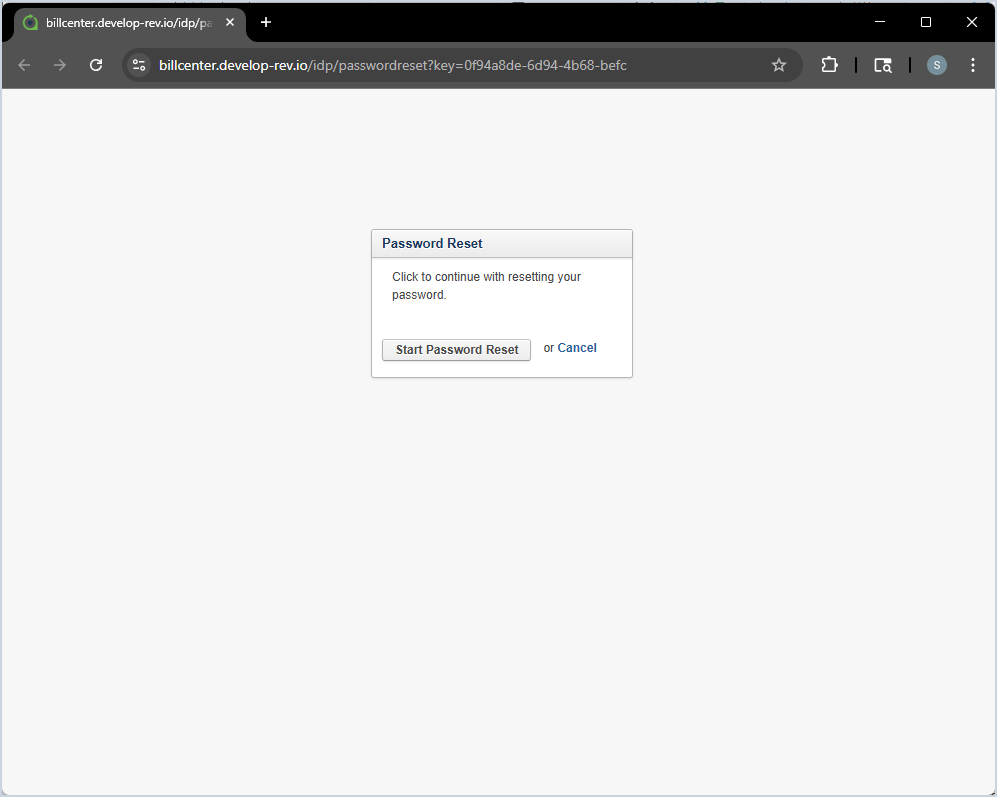
- Open the New User email from Rev.io.
- Click Reset Password.
- On the next screen, click Start Password Reset.
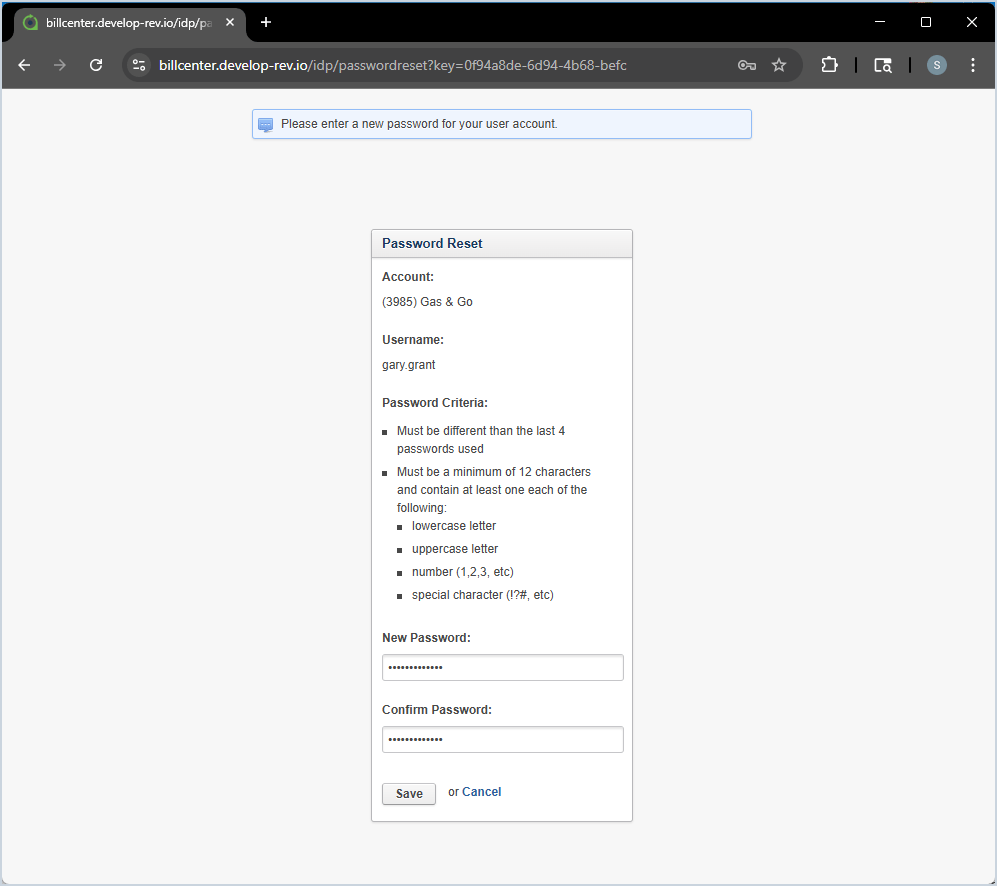
- Make note of the username displayed on the screen.
- Create and confirm your new password.
- Return to the login page and enter your username and password.
Important: Write down or save your username when it appears. According to Rev.io, this may be the only time it is displayed during the password setup process.
Log In to Your Customer Portal
After completing your account setup, you can return to the All Secure Customer Portal at:
https://allsecurepsa.portalrev.io/login
Enter the username provided during setup and the password you created.
You may occasionally see a screen asking you to click Login before the username and password fields appear.

Submit a Service Request
Need help with your security system, access control, alarm, camera system, or another All Secure service?
You can submit a service request directly through the portal.
To open a ticket:
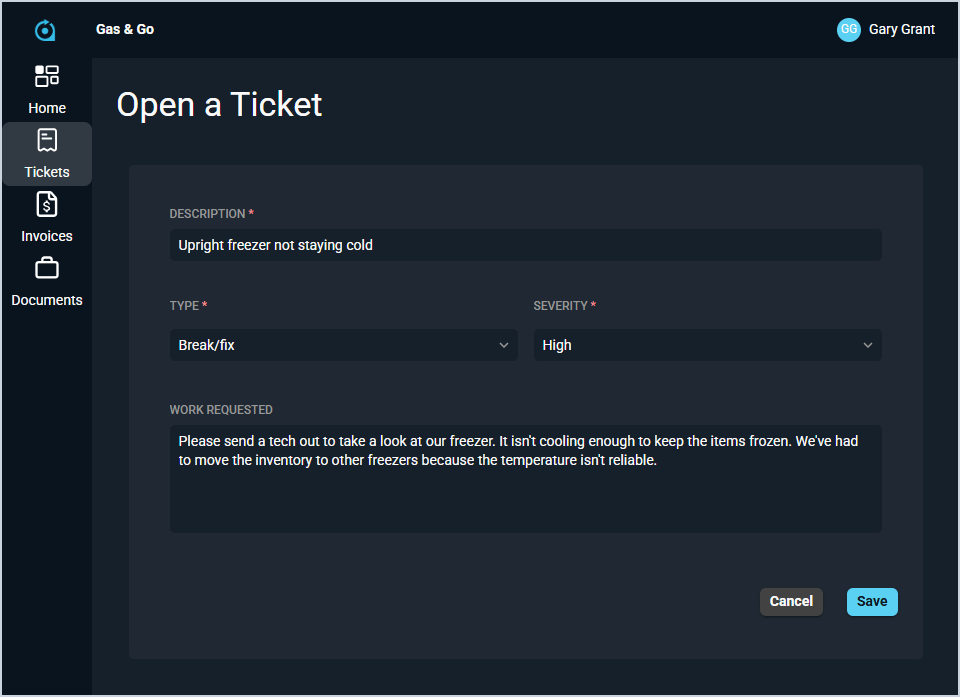
- Click Open a Ticket from the home screen or ticket menu.
- Enter a short description of the issue.
- Select the appropriate ticket type.
- Choose the level of urgency.
- Describe the work or assistance you need.
- Submit the ticket.
Your request will be sent directly to the All Secure team for review, assignment, and scheduling.
When submitting a ticket, include:
- The location of the issue
- The equipment or system involved
- What happened
- When the problem began
- Whether the issue is ongoing
- Any error messages you have seen
The more information you provide, the easier it will be for our team to understand the issue and determine the next step.
View and Track Your Tickets
The Tickets section displays the service requests associated with your account.
You can use this section to:
- Search for a specific ticket
- Filter tickets by type, status, severity, or date
- View whether a ticket is new, open, pending, closed, or void
- See when a ticket was created or last updated
- Open a ticket to review more details
- Respond to messages from the All Secure team
- Export your ticket list as a CSV file
Click anywhere on a ticket row to view its complete details and communication history.

View and Download Invoices
The Invoices section provides access to the invoices associated with your account.
From this screen, you can:
- Review all invoices
- See billing and due dates
- View charges, credits, payments, taxes, and balances
- Open an individual invoice
- Download invoice information
- Make a payment
- Review your payment history

Make a Payment
To make a payment through the portal:
- Open the Invoices section.
- Click Make a Payment.
- Select a saved payment method.
- Enter the amount you would like to pay.
- Review the total, including any applicable fees.
- Submit your payment.

Add or Update a Payment Method
The portal also allows you to manage your saved payment accounts.
From the Payment Accounts section, you may be able to:
- Add a credit or debit card
- Add a bank account or ACH payment method
- Edit an existing payment account
- Remove an outdated payment method
- Manage available autopay settings
To access these options, open the Invoices section and select Payment Accounts.

Review Your Payment History
The Payment History screen provides a record of payments made on your account.
Depending on the information available, you may see:
- Payment number
- Reference number
- Authorization code
- Payment method
- Payment date
- Payment amount
You can also sort the information, adjust the displayed columns, and export the payment history as a CSV file.

Need Help Accessing the Portal?
Contact All Secure if:
- You did not receive your New User email
- Your reset-password link has expired
- You cannot locate your username
- You are unable to log in
- You need another employee added as a portal user
- You have questions about an invoice or payment
- You need assistance submitting a service request
Phone: 303-667-2736
Email: accounting@all-secure.net
Customer Portal: https://allsecurepsa.portalrev.io/
Frequently Asked Questions
Can I create my own portal account?
At this time, All Secure must add you as an authorized portal user before you can log in. Once your account has been created, Rev.io will email you instructions for setting your password.
What should I do if I never receive the New User email?
Check your spam or junk folder first. If the email is not there, contact All Secure so we can verify your email address and portal access.
Can I submit service tickets through the portal?
Yes. You can create a new ticket, choose its type and urgency, explain the work requested, and review future updates.
Can I respond to messages on an existing ticket?
Yes. Open the ticket to review its details and use the ticket communication area to respond to messages or view previous updates.
Can I pay invoices online?
Yes. The portal allows you to view invoices, make payments, manage available payment methods, and review your payment history.
Will all billing move to Rev.io on August 1?
The portal launches August 1, but some recurring contract invoices may continue through the previous billing process for August. Those recurring invoices are expected to transition to Rev.io beginning September 1.
Why might my invoice come from a different email address?
As part of the transition, invoices may be sent from accounting@all-secure.net rather than an address you previously received billing communications from.
Can more than one person from my company use the portal?
Yes, but each person must be added as an authorized portal user by All Secure.
Welcome to a Better Customer Experience
We are excited to provide a simpler way to manage your All Secure account, request service, access invoices, and stay informed.
Thank you for your patience as we make this transition.
We look forward to keeping you… All Secure!